

In the Shopify Theme Editor, choose Theme settings > Cart, edit settings. Changes appear in the preview. Click Save to publish them.
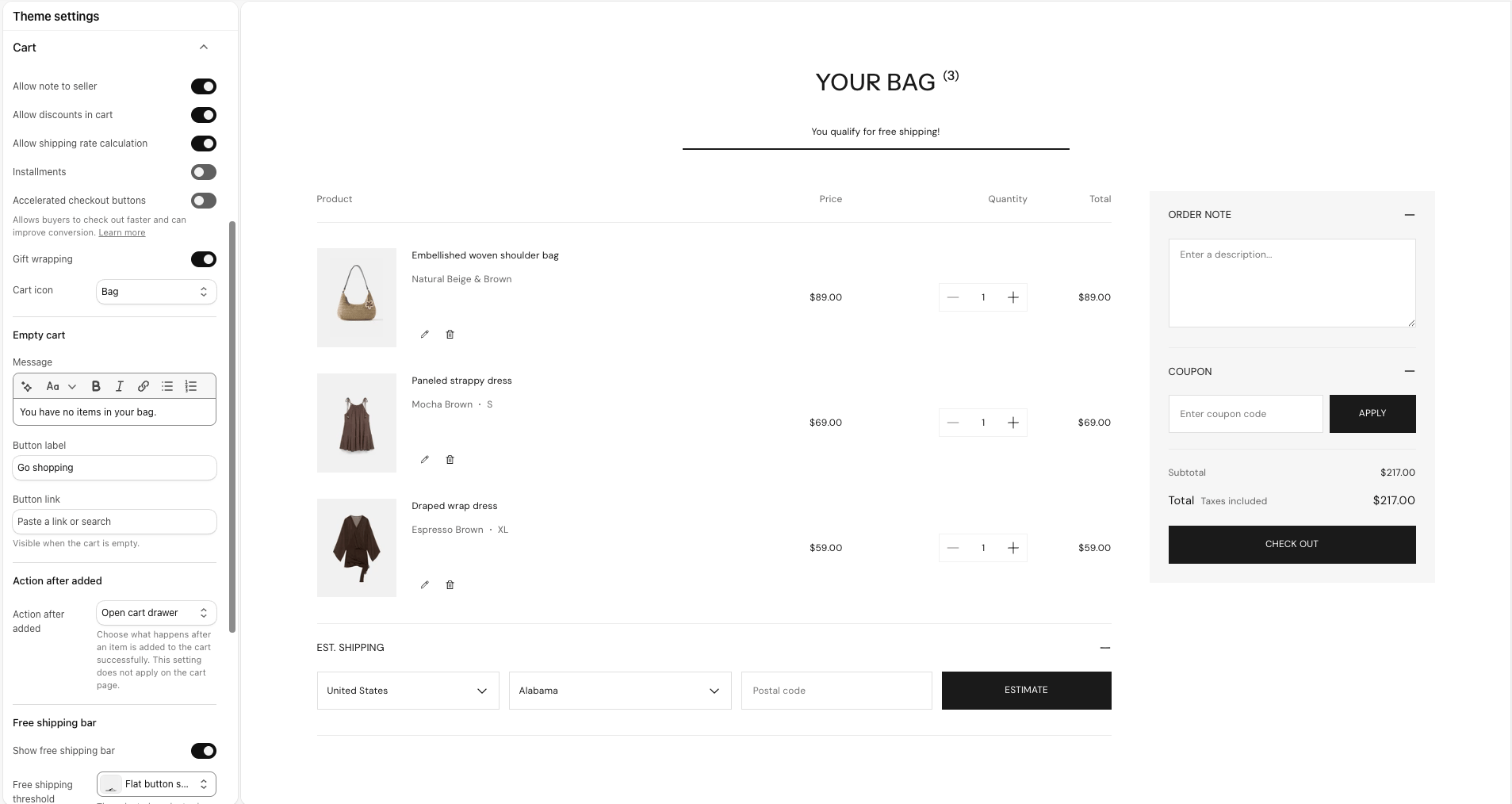
Cart
- Allow note to seller: Show a text field where customers can leave a note for the seller with their order.
- Allow discounts in cart: Show a discount code field directly in the cart, letting customers apply a code before checkout.
- Allow calculating shipping rate: Let customers enter their location in the cart to see an estimated shipping cost before checkout.
- Installments: Show an installment payment estimate (e.g., “4 payments of $X”) in the cart, if the store has an installment provider connected.
- Accelerated checkout buttons: Shows express checkout buttons (e.g., Shop Pay, PayPal, Google Pay) in the cart.
- Gift wrapping: Show a gift wrapping option customers can add to their order from the cart.
- Cart icon: Choose the cart icon used in the store:
- Cart
- Bag modern
- Bag
- Bag classic
- Tote bag circle
- Tote bag modern
- Basket modern
- Basket
Empty cart
Shown when the cart has no items.- Message: The headline text displayed on the empty-cart state.
- Button label: The label for the call-to-action button shown on the empty-cart state.
- Button link: Where the button navigates to.
Action after added
Choose what happens after an item is added to the cart successfully. This setting does not apply on the cart page. Available options include:- No action. Stay on the current page
- Open cart drawer
- Go to cart page
- Go to checkout page
- Go to custom link
- Custom cart link: Enter the custom link.
Free shipping bar
- Show free shipping bar: Turn the free shipping progress bar on or off in the cart.
- Free shipping threshold product: The selected product price is used as the free shipping threshold.