

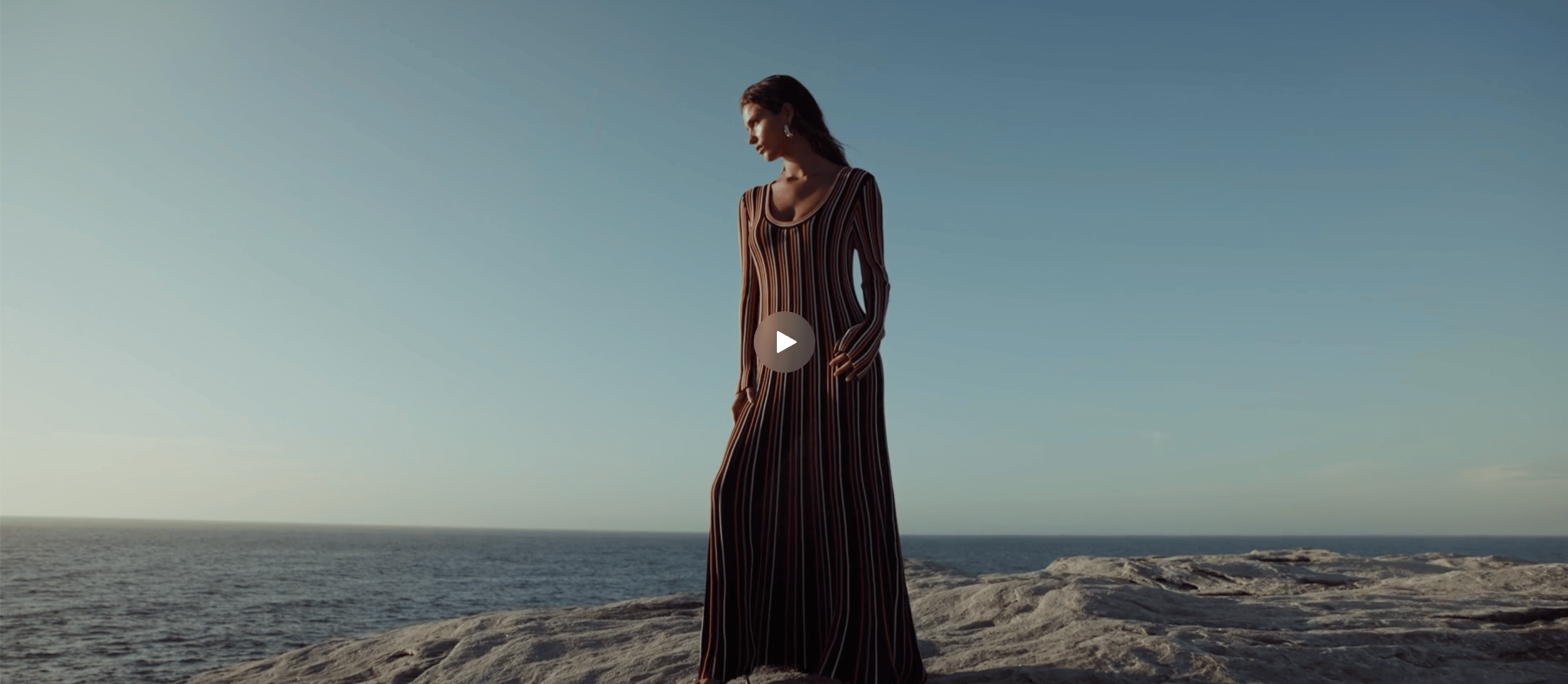
In the Shopify Theme Editor, choose Sections, add or select Video to edit its settings. Changes appear in the preview. Click Save to publish them.
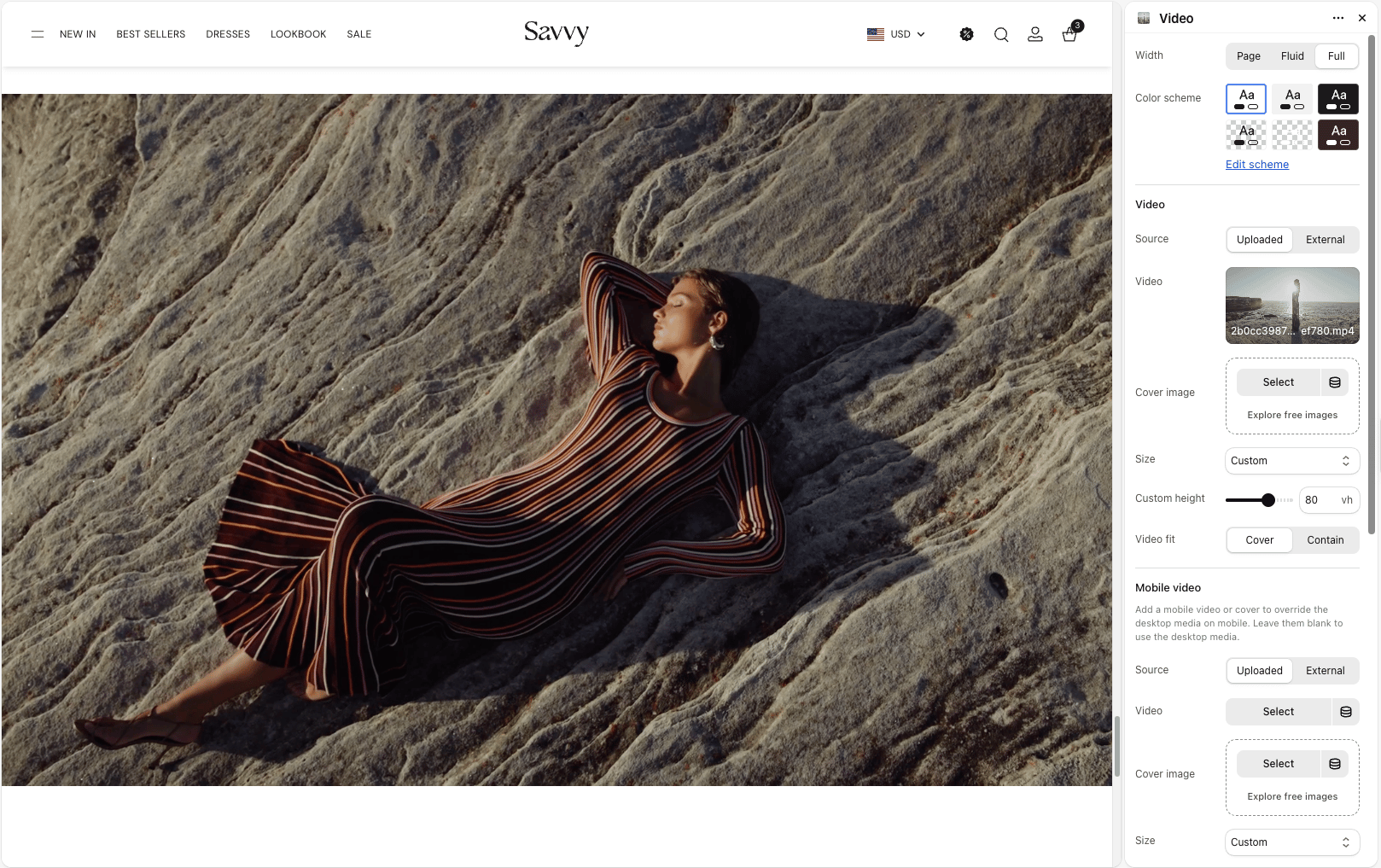
Width
Choose how wide the section appears within the page.- Page: Keep the section within the theme’s page width.
- Fluid: Expand the section to use more available horizontal space.
- Full: Make the section span the full width of the browser window.
Color scheme
Choose the color scheme used by the section. The available color schemes depend on the color schemes configured in your theme settings.Desktop video
The Video group controls the video displayed on desktop.- Source: Choose where the video comes from.
- Uploaded: Use a video uploaded to your Shopify store. When selected, you can choose:
- Video: Select the video to display in the section.
- Cover image: Select an image to display as the video’s cover image. The cover image is shown before the video starts playing or when the video cannot be played immediately. Choose an image that clearly represents the video content and works well as a fallback while the video is loading.
- External: Use a video hosted on an external video service, such as Youtube or Vimeo. When selected, you can configure:
- URL: Enter the link to the externally hosted video.
- Cover image: Select an image to display as the video’s cover image.
- Alt text: Describe the video for visitors using assistive technologies. Write a short, meaningful description that communicates the purpose or content of the video.
- Uploaded: Use a video uploaded to your Shopify store. When selected, you can choose:
- Size: Control the height of the video section. Available options:
- Adapt to video: Use the video’s aspect ratio to determine its height.
- Medium: Display the video at a medium fixed height.
- Large: Display the video at a larger fixed height.
- Fit screen: Make the video fit the available screen height.
- Custom: Let you define a custom height.
- When Custom is selected, set the Custom height, ranging from 40-100 viewport height.
- Video fit: Control how the video fits within the available section area.
- Cover: Scale the video to completely fill the available area. Parts of the video may be cropped.
- Contain: Show the video entirely within the available area. Empty space may appear around the video.
Mobile video
Mobile video allows you to provide a separate video for mobile devices. Add a mobile video or cover to override the desktop media on mobile. Leave them blank to use the desktop media.- Source: Choose where the mobile video comes from: Uploaded or External.
- Uploaded: Use a video uploaded to your Shopify store. When selected, you can choose:
- Video: Select the video to display on mobile devices.
- Cover image: Select an image to display as the mobile video’s cover image. Choose a cover image that works well with the mobile video and clearly represents its content.
- External: Use a video hosted on an external video service, such as Youtube or Vimeo. When selected, you can configure:
- URL: Enter the link to the externally hosted mobile video.
- Cover image: Select an image to display as the mobile video’s cover image.
- Alt text: Describe the mobile video for visitors using assistive technologies.
- Uploaded: Use a video uploaded to your Shopify store. When selected, you can choose:
- Size: Control the height of the video section. Available options:
- Adapt to video: Use the video’s aspect ratio to determine its height.
- Medium: Display the video at a medium fixed height.
- Large: Display the video at a larger fixed height.
- Fit screen: Make the video fit the available screen height.
- Custom: Let you define a custom height.
- When Custom is selected, set the Custom height, ranging from 40-100 viewport height.
- Video fit: Control how the video fits within the available section area.
- Cover: Scale the video to completely fill the available area. Parts of the video may be cropped.
- Contain: Show the video entirely within the available area. Empty space may appear around the video.
Behavior
Behavior controls how the video plays and how visitors interact with it.- Autoplay: Control whether the video starts playing automatically when it becomes visible. Autoplay is muted and disabled when the visitor prefers reduced motion.
- Loop video: Control whether the video automatically starts again after it reaches the end.
- Show video controls: Control whether playback controls are displayed on the video.
Section padding
Section padding controls the amount of space around the Video section.- Top: Control the space above the section on desktop.
- Bottom: Control the space below the section on desktop.
- Mobile top: Control the space above the section on mobile.
- Mobile bottom: Control the space below the section on mobile.