

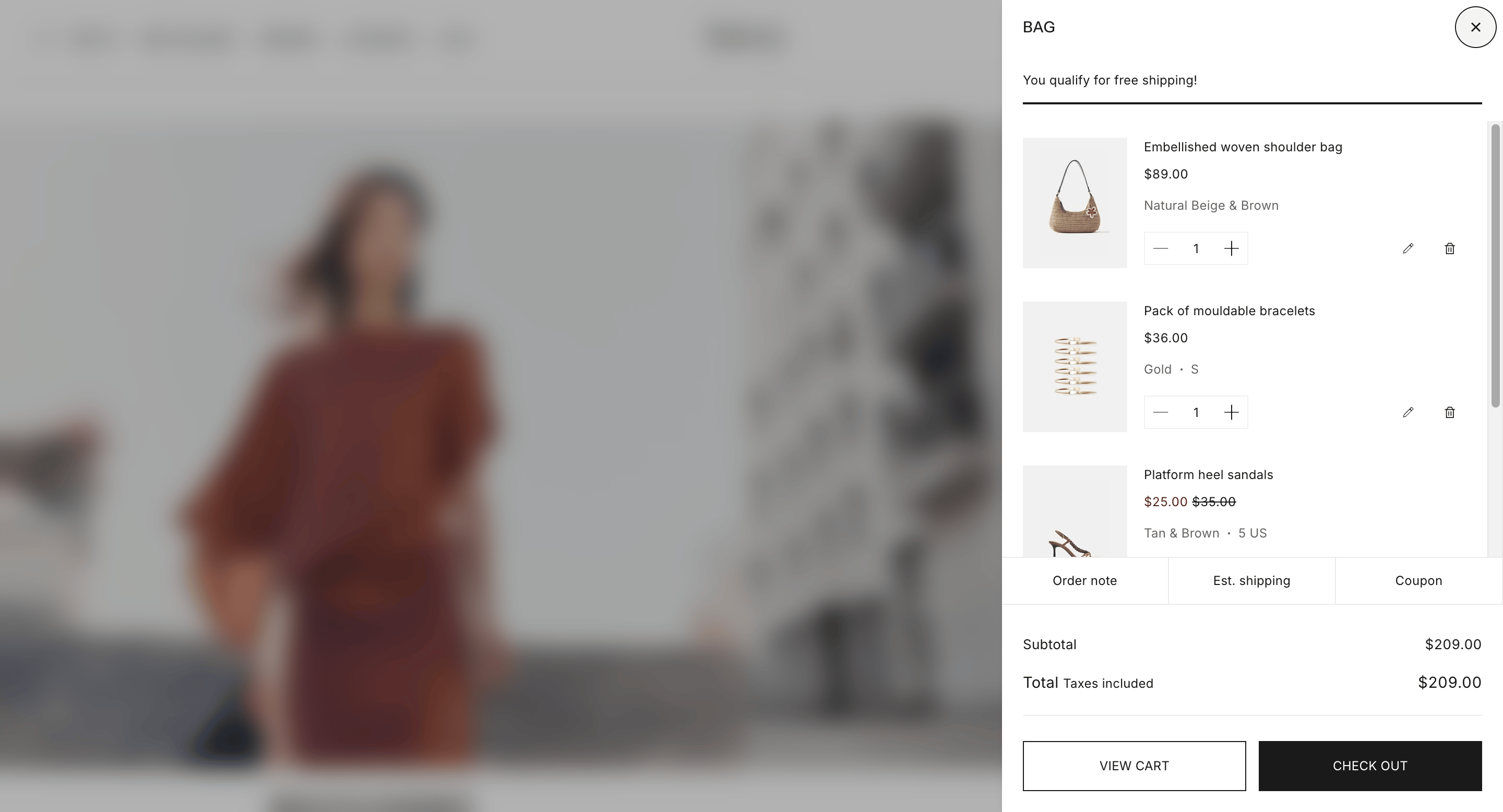
In the Shopify Theme Editor, choose Sections, move over the Overlay group, add or select Cart drawer to edit the section. Changes appear in the preview. Click Save to publish them.
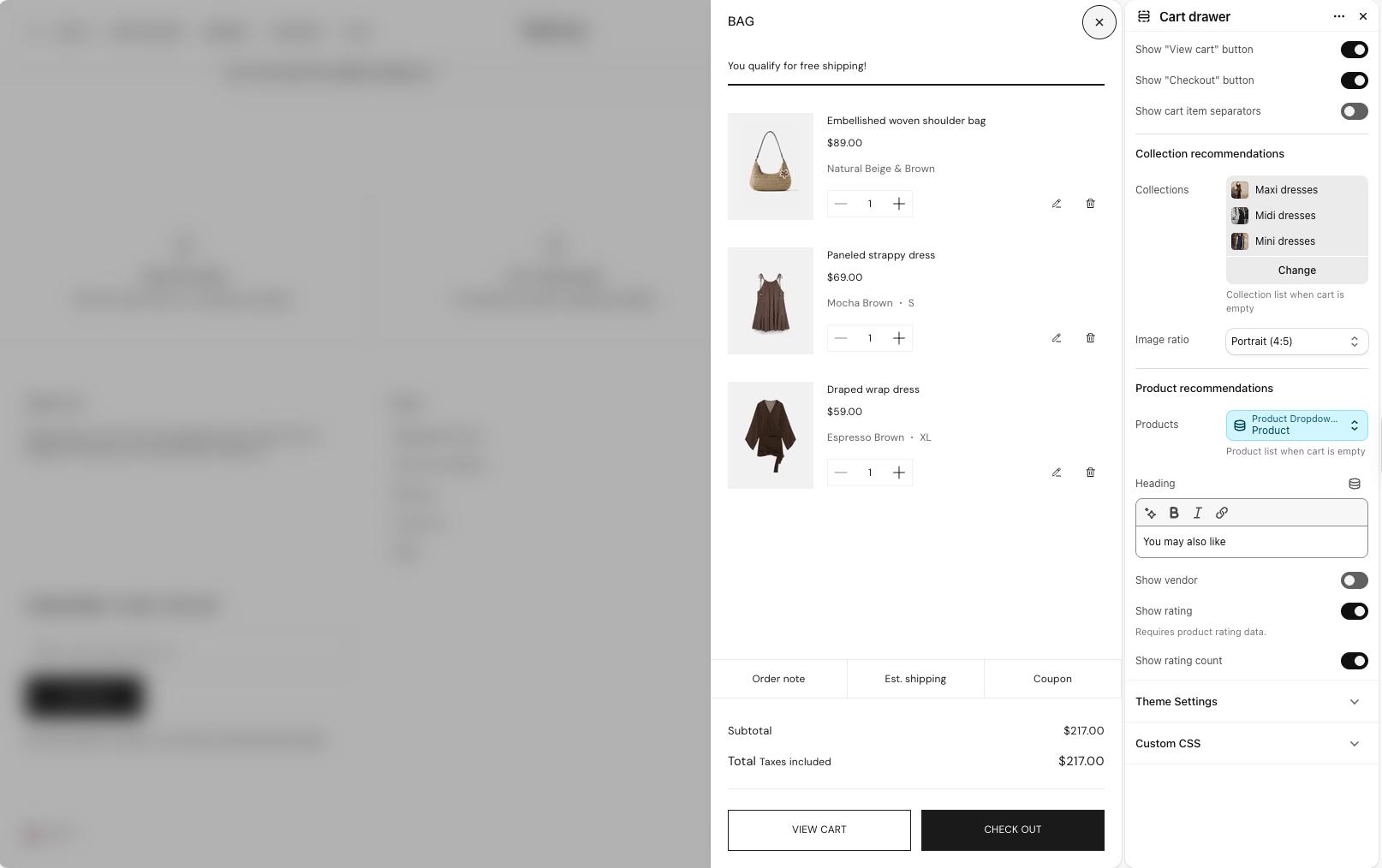
General settings
- Show “View cart” button: Display the View cart button in the cart drawer. Enable this to give customers a direct way to open the full cart page.
- Show “Checkout” button: Display the Checkout button in the cart drawer. Enable this to give customers a direct way to proceed to checkout.
- Show cart item separators: Display separators between individual cart items. Enable this when you want to make individual products easier to distinguish from one another.
Collection recommendations
The Collection recommendations displays selected collections in the cart drawer when the cart is empty. Use it to give customers additional shopping options when their cart is empty.- Collections: Select the collections you want to recommend.
- Image ratio: Choose the image ratio used for collection images.
- Adapt to image
- Square (1:1)
- Portrait (4:5)
- Portrait (3:4)
- Portrait (2:3)
- Landscape (5:4)
- Landscape (4:3)
- Landscape (3:2)
Product recommendations
The Product recommendations displays selected products in the cart drawer when the cart is empty. Use it to give customers additional shopping options when their cart is empty.- Products: Select the products you want to recommend.
- Heading: Set the heading displayed above the product recommendations.
- Show vendor: Display the product vendor alongside recommended products.
- Vendor uppercase: Display the vendor name in uppercase.
- Show rating: Display the product rating for recommended products. This setting requires product rating data.
- Show rating count: Display the number of ratings alongside the product rating.