

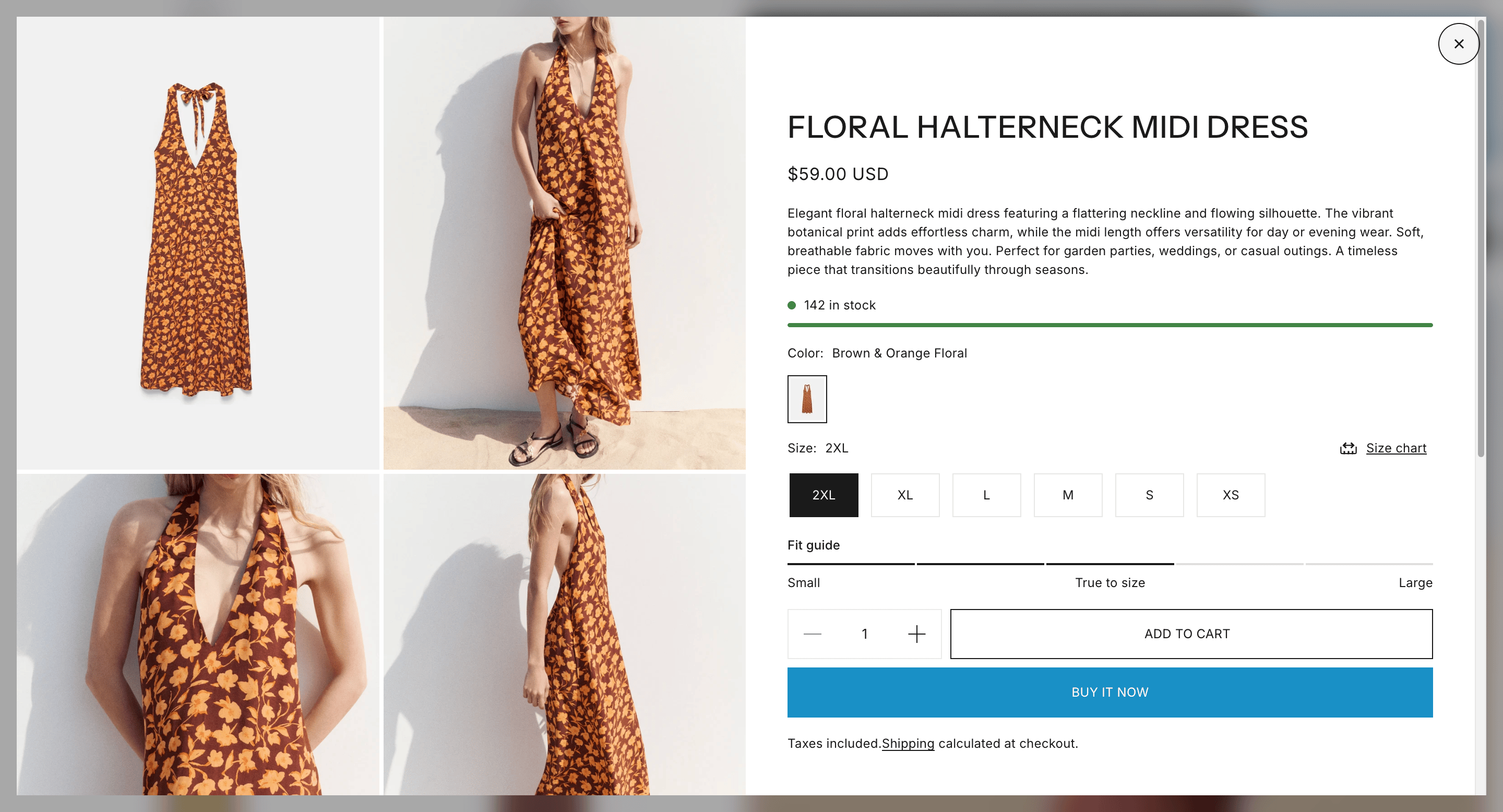
In the Shopify Theme Editor, choose Sections, move over the Overlay group, add or select Quick view to edit the section. Changes appear in the preview. Click Save to publish them.
How to edit product quick view
- Open Shopify Theme Editor.
- Choose Sections.
- Move to Overlay group and choose Quick view.
- After configuring settings, click Save.
Section settings
These settings control the overall appearance of the Quick view, including its color scheme and the spacing around product details.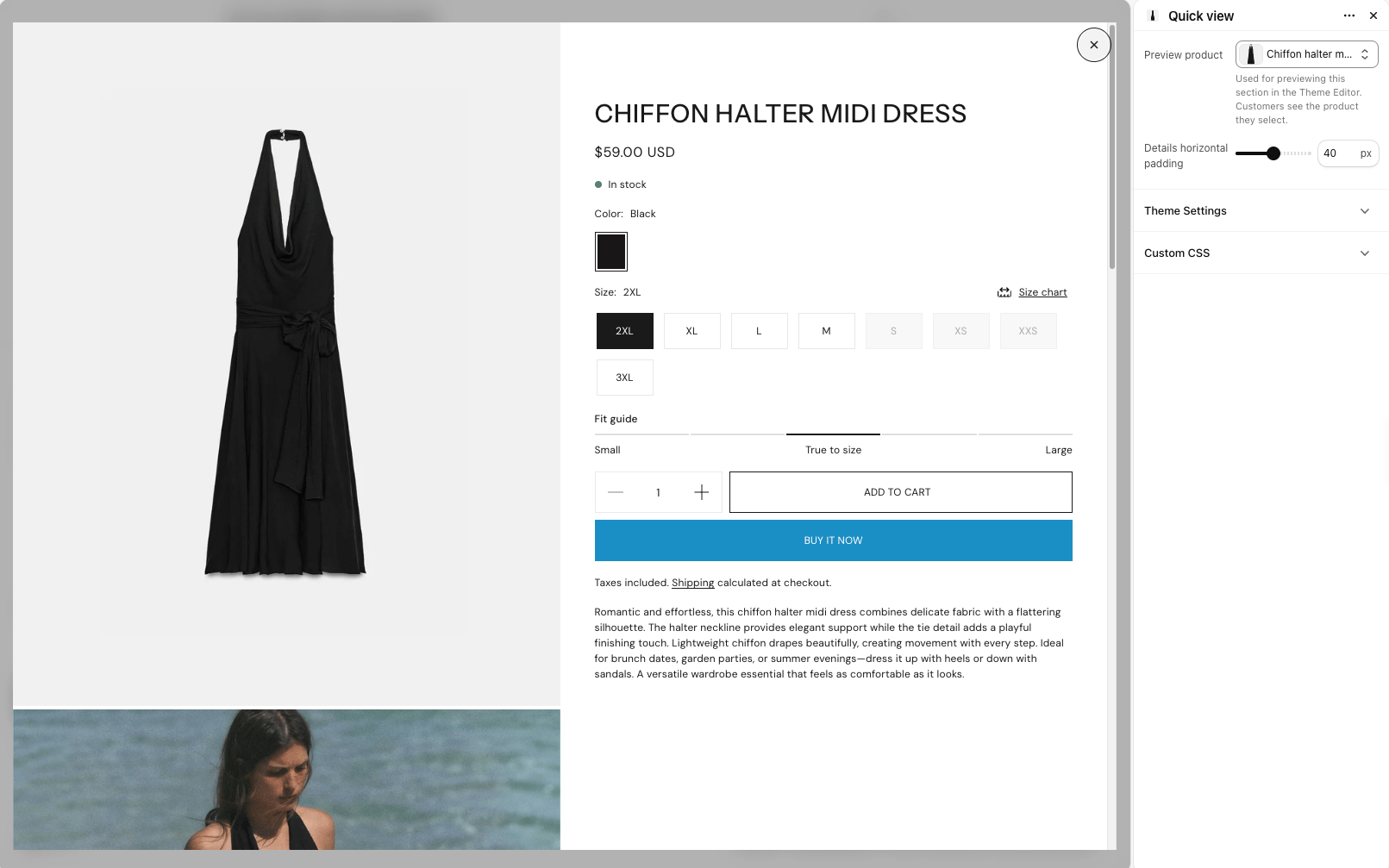
Block settings
Quick view media
These settings control the appearance and behavior of product media, such as images and videos, inside the Quick view.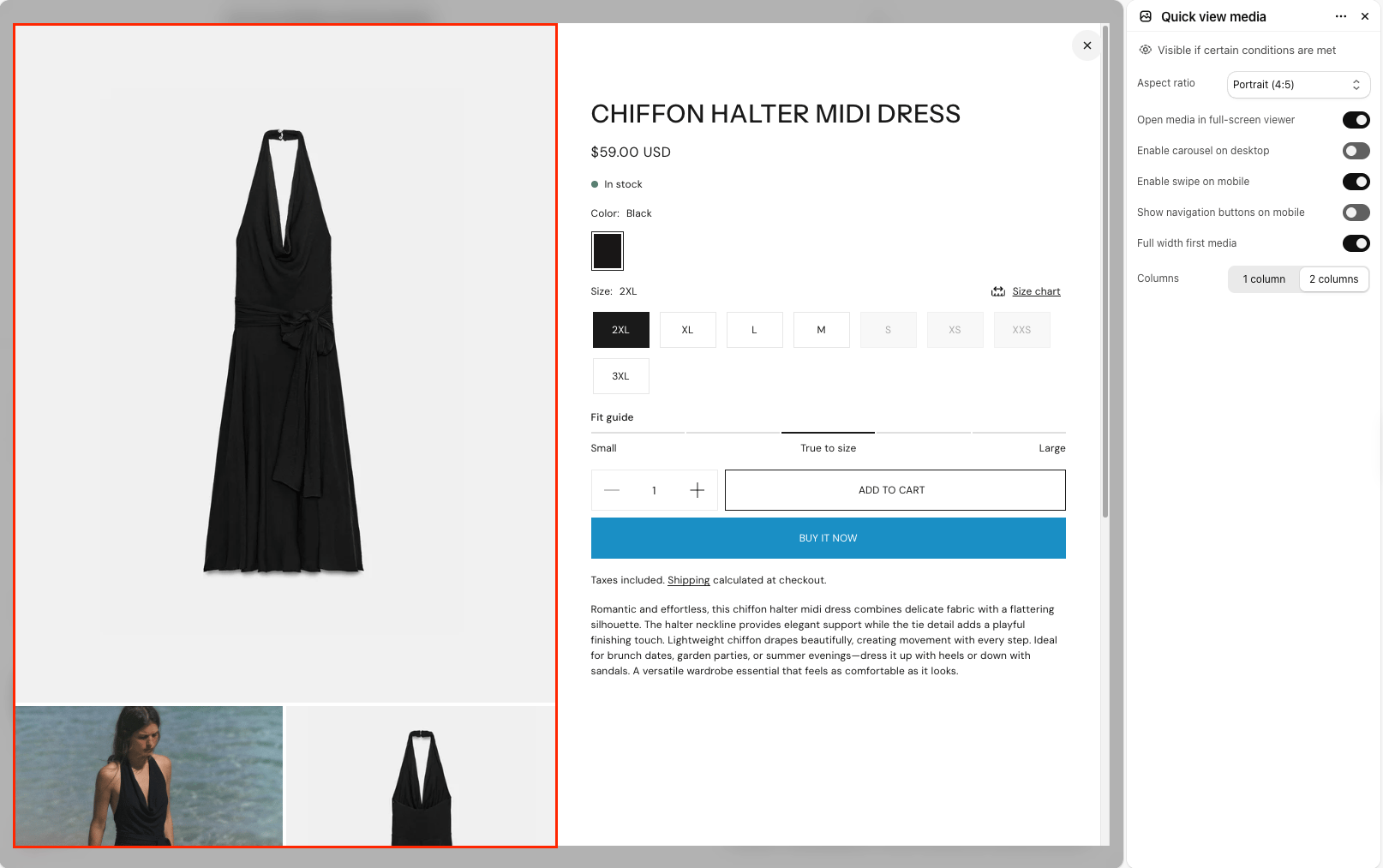
- Aspect ratio: Choose how product media is proportioned within the Quick view.
- Inherit: Use the aspect ratio inherited from the product media.
- Adapt to media
- Square (1:1)
- Portrait (4:5)
- Portrait (3:4)
- Portrait (2:3)
- Landscape (5:4)
- Landscape (4:3)
- Landscape (3:2)
- Open media in full-screen viewer: Enable this setting to let customers open product media in a full-screen viewer for a closer look.
- Enable carousel on desktop: Display product media in a carousel on desktop, allowing customers to navigate between multiple media items.
- Enable swipe on mobile: Allow visitors to swipe through media items on mobile.
- Show navigation buttons on mobile: Display navigation buttons on mobile devices, allowing visitors to move between media items manually.